
Idea: decide what your video is about
You need something that a particular audience might find useful, interesting, relatable, or entertaining.
For example, instead of making a video about “saving money,” try something more specific: “Three everyday habits that quietly waste money.” You can also choose a format before you start:
- Story: Tell someone what happened and why it matters.
- Countdown: Share tips, facts, or examples in a list.
- Quiz: Ask a question and reveal the answer.
- Chat: Present information as a conversation.
- POV: Show a situation from a particular perspective.
Common mistake: trying to explain too much in one video. A short video usually works better when it focuses on one clear subject. If your idea needs several explanations, break it into separate videos rather than squeezing everything into one.
Clip-Short’s AI Agent turns a written idea into a narrated, captioned vertical video, as a story, a countdown, a quiz, a chat or a POV. Stuck for an idea? The video idea generator and the hook generator are free and need no account.
Script: write what people will hear
A script is simply the words spoken in your video. You don’t need professional writing skills. Write naturally, as if you’re explaining something to a friend. A useful beginner structure is:
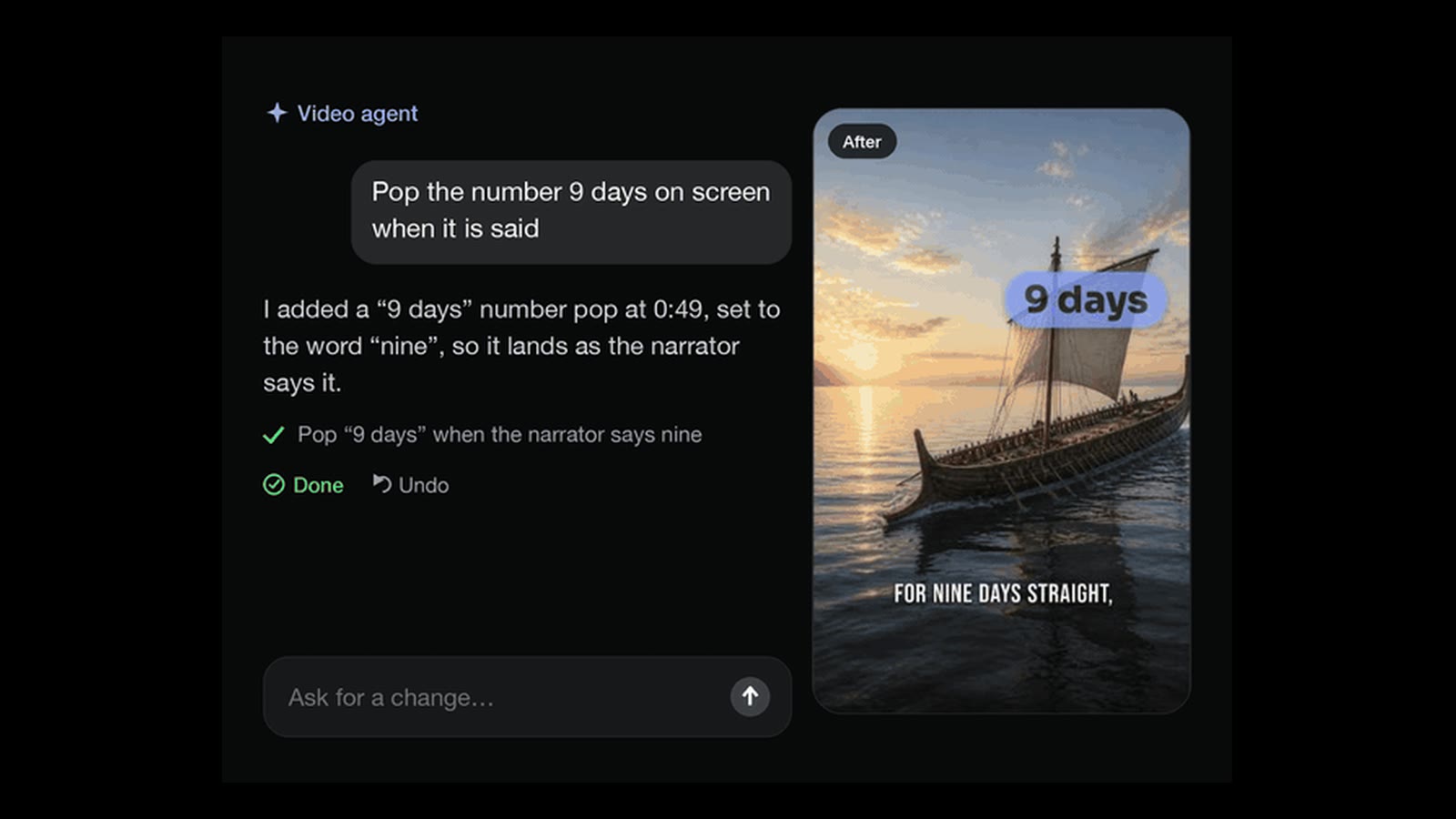
- Opening: give people a reason to watch. Start with an interesting question, a useful promise, or a surprising fact. “Why do some countries drive on the left?”
- Explanation: deliver what you promised. Use short sentences and simple language. Avoid introducing unrelated information.
- Ending: finish clearly. Answer the original question, summarize the main point, or invite viewers to share their thoughts.
Read your script aloud before making the video. If it sounds complicated when spoken, simplify it.
Common mistake: writing it like an essay. Long introductions, complicated sentences, and unnecessary background information can make a short video difficult to follow. Also, check AI-generated scripts for factual errors before publishing.
Enter your idea into Clip-Short’s AI Agent, which writes a script as part of creating the video. You can edit the narration in individual scenes afterward.
Voice: choose how your video will sound
You don’t have to appear on camera or record your own voice. Whatever method you choose, make sure your audience can understand the message.
- Record your own voice. Use your phone or computer microphone in a quiet space.
- Use an AI-generated voice. This is useful if you’re uncomfortable recording, don’t have a microphone, or want narration in another language.
- Make a text-led video. Some videos communicate mainly through on-screen words, pictures, and music.
Common mistake: choosing a voice without listening to the result. An AI voice might pronounce names incorrectly, pause unnaturally, or emphasize the wrong words. Listen to the entire video before publishing.
Clip-Short’s AI Agent narrates the video with one of 23 voices, in any of 30 languages, and you can rewrite what the narrator says scene by scene. On a paid plan you can also narrate in your own voice, made from one recording.
Pictures or footage: give viewers something to watch
Now you need visuals that match your script.
- Record footage with your phone. You can film objects, places, activities, tutorials, or everyday situations.
- Use pictures. You can create videos using still images, illustrations, diagrams, or photographs. Use images you created or have permission to use.
- Generate AI pictures. AI image generation can help illustrate ideas that are difficult to film. Check generated pictures carefully, especially when depicting real events, people, or historical details.
- Turn a longer video into short clips. If you already have a podcast, interview, tutorial, or YouTube video, you can select a useful section and turn it into a short video.
Common mistake: using visuals that don’t match the narration. Choose pictures and footage that support what is being said. Also, don’t assume an image found online is free to use. Check its license or obtain permission.
Clip-Short’s AI Agent makes the pictures for each scene of your video, and you can swap or redraw any of them. If you already have longer footage, AI Clipping cuts a long video, uploaded or linked from YouTube, Twitch, Kick or X, into vertical clips with captions. Clip-Short also has a video editor that runs in the browser.
Captions: make your words readable
Captions display spoken words as text on the screen. Captions also help viewers follow unfamiliar names and terminology. Before publishing, check that:
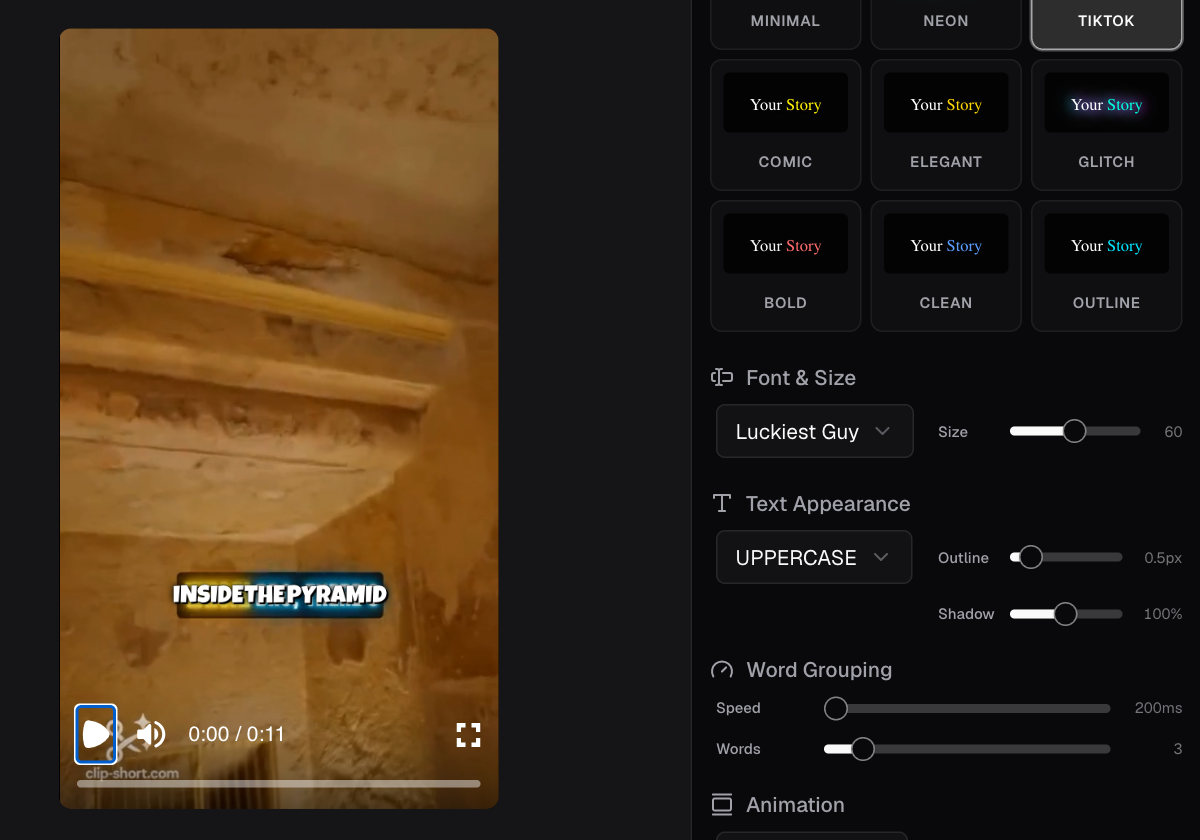
- The words match the narration. Names and technical terms are spelled correctly.
- Text is large enough to read on a phone. Captions remain visible against the background.
- Important words aren’t hidden behind platform buttons or interface elements.
Try watching your finished video with the sound turned off. Common mistake: assuming automatic captions are always correct. Speech recognition can mishear names, accents, numbers, and unfamiliar words. Read the captions from beginning to end and correct mistakes before posting.
Clip-Short’s AI Agent adds captions automatically when generating a video, and each scene’s captions remain editable. For existing footage, you can use Auto Caption to add captions without creating a new AI video.
The right size and length: prepare your video for the platform
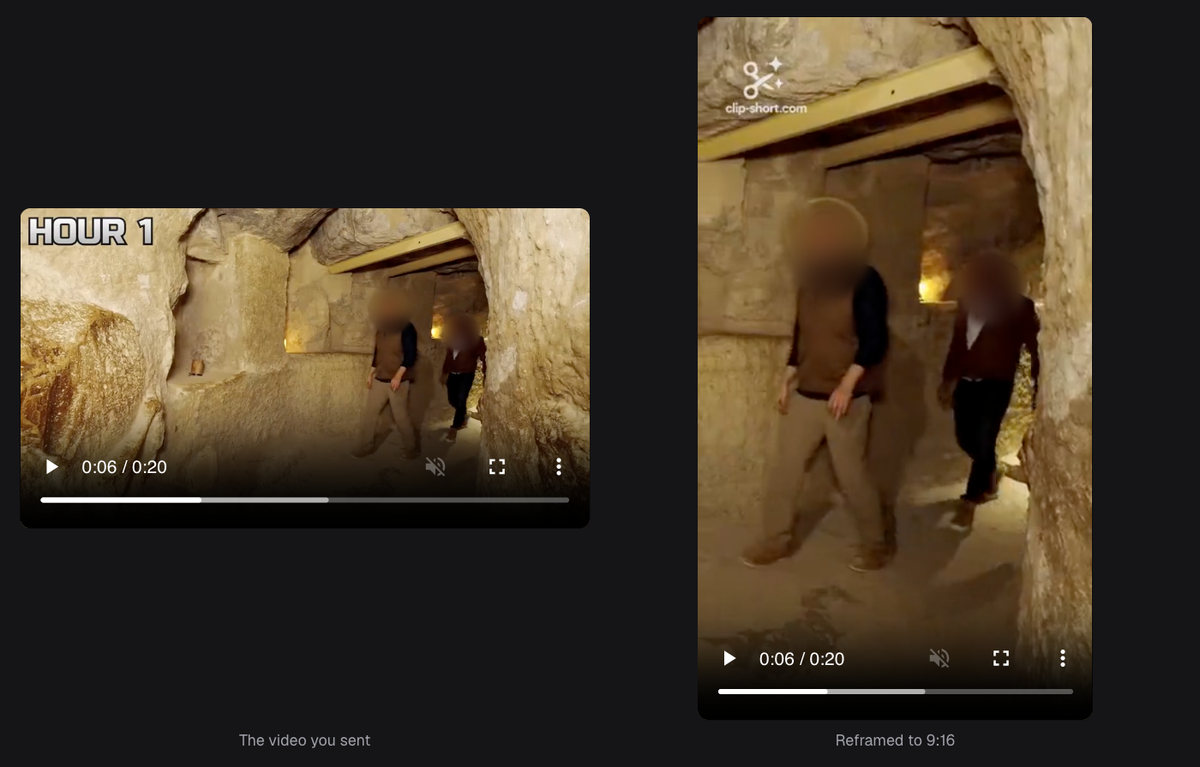
A video needs the right shape, also called its aspect ratio.
| Aspect ratio | Shape | Common use |
|---|---|---|
| 9:16 | Vertical | TikTok, Instagram Reels, YouTube Shorts |
| 4:5 | Portrait | Social media feed posts |
| 1:1 | Square | Social media feed posts |
| 16:9 | Horizontal | Standard YouTube videos |
For a beginner creating videos for TikTok, Instagram Reels, or YouTube Shorts, 9:16 vertical video is a practical starting point.
Make your video long enough to deliver the idea clearly, but no longer than necessary. You don’t need to fill the maximum length allowed by a platform. Platform limits and upload requirements can change. Our size guides for TikTok, Reels and Shorts give each platform’s current numbers with their sources; for anything else, check the platform’s own help page.
Common mistake: making a horizontal video and uploading it without checking how it looks vertically. Another common mistake is making a video longer simply because the platform allows it. Choose the length that serves your idea.
Clip-Short’s Reframe changes an existing video’s shape to 9:16, 4:5, 1:1 or 16:9, for example a horizontal 16:9 video into a vertical 9:16 one, and keeps the person or main subject in frame. The AI Agent makes vertical 9:16 videos by default.
Posting: download, check, and publish your video
Start with one platform, learn its publishing process, and expand when you’re comfortable. Before you upload, watch the whole video and check the narration, images, captions, music, spelling and ending.
Then save the file to your phone or computer, open TikTok, Instagram or YouTube, follow its upload process and look at the preview before you publish.
Write the post caption. The post caption is the text that accompanies your video. It’s different from the captions displayed inside the video itself. Add relevant hashtags if they help describe your topic. Before you publish, check the title or description, the privacy settings and any disclosure the platform asks for: if your video contains AI-generated or altered content, check its current rules for labelling it.
Common mistake: thinking that finishing a video means it has already been posted. Creating, downloading, and publishing are separate actions.
Clip-Short’s Post button writes the words for each platform: a YouTube title, description and tags, and the TikTok and Instagram captions. Clip-Short never posts for you: you download the finished video and upload it yourself. If you schedule a post in Clip-Short, you get an email reminder at that time, not an automatic post.
Growing: what to post, and how often
Publishing your first video is the beginning.
Choose a broad subject you’re interested in and create videos around smaller questions. For example, if your subject is travel, your videos could cover:
- Common travel mistakes
- Interesting facts about destinations
- Simple packing advice
- Travel questions and answers
You can also create a series where each video explores a different part of the same subject. A series gives you a repeatable format without requiring a completely new concept every time. Start with a schedule you can maintain. If you have limited time, making one thoughtful video and publishing it regularly is more manageable than planning daily videos you cannot finish. There is no universal posting frequency that guarantees growth.
Clip-Short’s Series feature lets you create a set of videos on one topic, with drafts prepared on a schedule. Series is available on the Pro plan. You’ll still need to download and publish the videos yourself.
How to know what worked
Most social platforms provide analytics or insights about video performance. The exact metrics and their availability vary by platform. Here are useful things to examine:
| Metric | What it can help you understand |
|---|---|
| Views | How many times your video was viewed, according to the platform’s definition |
| Average watch time | How long viewers watched on average |
| Audience retention | Where viewers continued watching or stopped |
| Comments | Whether viewers wanted to respond or discuss |
| Shares | Whether viewers passed the content to others |
| Follows or subscribers | Whether viewers chose to see more of your content |
Not every platform displays all these metrics. For current definitions and available analytics, check the platform’s own help page.
Compare your videos instead of judging each one in isolation. Look for patterns across multiple videos.
Common mistake: expecting immediate growth, or changing your whole approach after one video. Another mistake is focusing only on views. Watch time, comments, saves, and other available metrics can provide additional context.
What can you make for free, and what does Clip-Short cost?
You can begin creating short videos without buying equipment or paying for AI generation.
Since October 27, 2026, the free plan makes no AI videos: it gives 60 minutes a month of Auto Caption and Reframe, with a small watermark. AI Clipping comes with Pro or a Clip pack. AI videos are paid: with Pro, or one at a time, paid once (except in Egypt).
Pro costs US$19 a month and comes with 10 AI videos a month. One AI video costs US$2.49, paid once, up to 3 minutes long, with no watermark and no subscription.
For example, you could record a video with your phone and use the free Auto Caption feature to add captions. Or you could use AI Clipping to turn longer footage into shorter vertical videos.
Your first short video: a simple checklist
- Idea: choose one specific question, story, or topic.
- Script: write a short opening, explanation, and ending.
- Voice and visuals: record narration or choose an AI voice; film footage, select images, or generate pictures.
- Captions: add readable text and correct mistakes.
- Size and length: choose the appropriate aspect ratio and check the platform’s current requirements.
- Post: watch it all once more, download it, upload it yourself with a post caption, and publish.
- Learn: review the results and decide what to improve next.