
The sizes at a glance
YouTube decides what a Short is by two things only: the shape of the video and its length. A video that is square or vertical and lasts up to 3 minutes is categorized as a Short. There is no switch to turn on and no special upload button for the shape.
The shape is what you control. The table shows the four shapes you will meet, at 1080 pixels on the short side. Those pixel sizes are our arithmetic, not a number YouTube prints, because the help pages we read give a shape and a length but no required resolution.
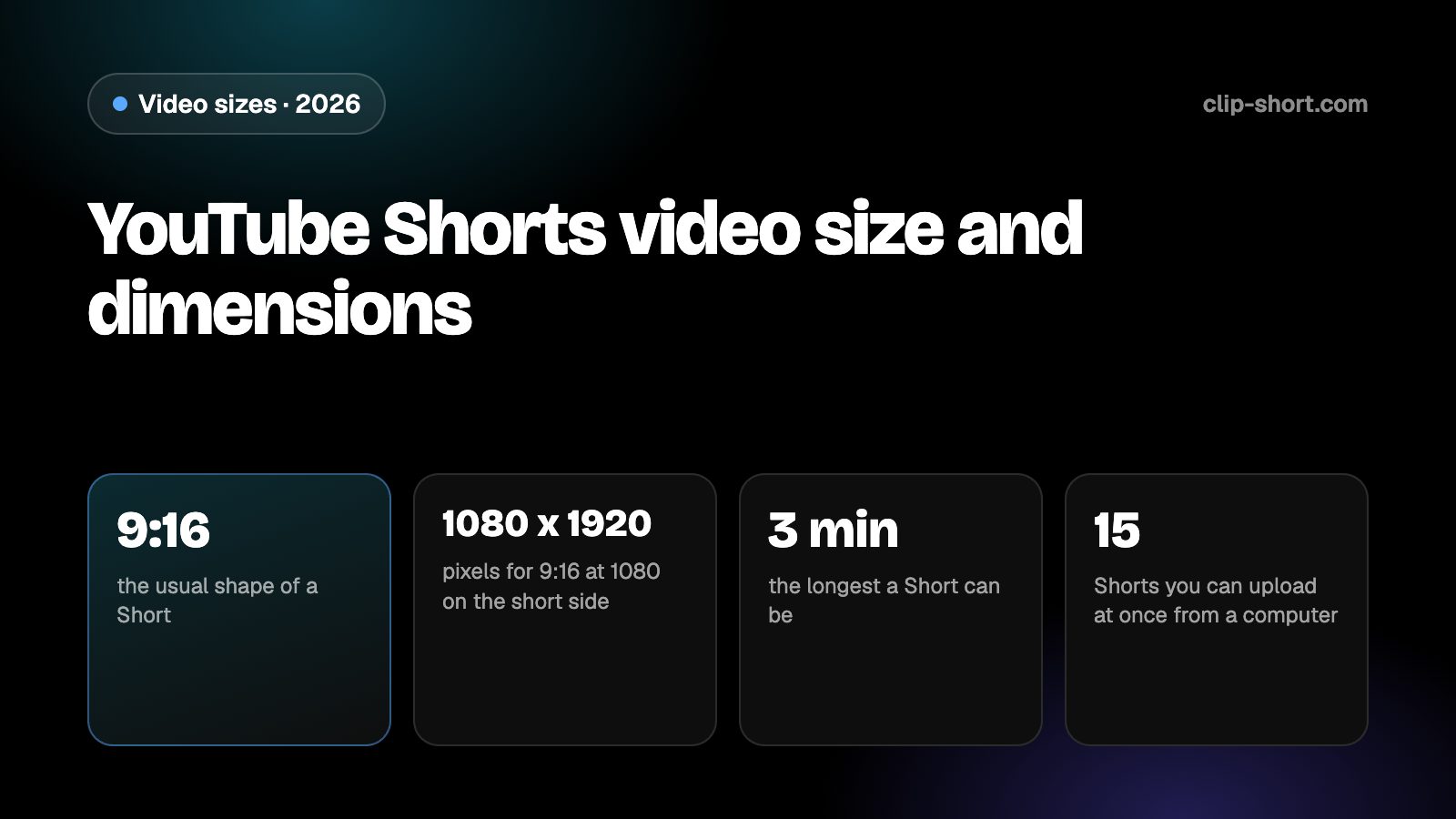
- 9:16the usual shape of a Short
- 1080 x 1920pixels for 9:16 at 1080 on the short side
- 3 minthe longest a Short can be
- 15Shorts you can upload at once from a computer
| Shape | Pixels | On YouTube |
|---|---|---|
| 9:16, vertical | 1080 x 1920 | The usual Shorts shape. Fills a phone held upright |
| 4:5, portrait | 1080 x 1350 | Vertical, so it counts, but it does not fill the screen |
| 1:1, square | 1080 x 1080 | Square counts as a Short, with space above and below |
| 16:9, horizontal | 1920 x 1080 | A regular video. Never a Short |
A larger file of the same shape is fine, and so is a smaller one. What matters to YouTube is that the picture is not wider than it is tall.
How long a Short can be
The limit is 3 minutes. YouTube says you can upload Shorts up to three minutes through the YouTube app and YouTube Studio. The limit applies to videos uploaded on or after October 15, 2024; a vertical video of one to three minutes uploaded before that date stays a regular video.
A video that is longer than 3 minutes is a regular video even if it is vertical. If a story needs more time than that, cut it into parts that each fit, or publish the long version as a regular video and a short cut-down as a Short.
- Length: up to 3 minutes.
- Shape: square, or vertical, which means taller than it is wide.
- From a computer you can upload up to 15 Shorts at a time.
Which Shorts earn money is a separate question from what counts as a Short. Our guides to the Partner Program cover the views a channel needs.
Keep words and faces out of the way
YouTube draws its own interface over a Short: the title and channel name along the bottom, and the like, comment and share buttons down one side. YouTube's help pages we read do not publish a safe-zone drawing in pixels, so we give no margin numbers.
The practical rule is simple. Keep titles, captions and faces toward the middle of the frame, away from the bottom and from the side with the buttons, and test the video on a phone before you publish. Captions burned into the picture stay readable when people watch with the sound off.
Preparing a video for Shorts
If your footage is horizontal, you have two honest choices: shoot or edit it vertical from the start, or crop it. A 16:9 frame cropped to 9:16 at the same height keeps a little under a third of its width (81 out of 256 parts of it), so the question is which part to keep. A crop fixed on the middle cuts people off whenever they move.
For a long video you already have, pick the strongest moments and make each a vertical clip of its own. Each clip should work without the context around it: a clear first second, then one idea.
- Export 9:16 for the Shorts feed, or 1:1 if the picture is built for a square.
- Keep each Short at 3 minutes or less, and check the length before uploading.
- Do not upload a horizontal file and hope: it will be a regular video.
Sound, captions and the first seconds
Shorts are watched in a feed, one video after another, and many people watch with the sound low or off. A caption burned into the picture is read in any app and in any room, which is why most Shorts carry one. Put each caption on screen for as long as the words take to say, and keep a line short enough to read at a glance.
The shape of the video cannot rescue a slow start. The first second decides whether a viewer stays or swipes, so open on the result, the question or the surprise, and leave the introduction out. If you cut a Short from a longer video, start on the sentence that makes sense alone.
Check the finished file on a phone, not only on a computer screen. Text that looks large in an editor can be small on a handset, and a face that looks centered can sit under the buttons. If you change the shape or the captions, export again instead of stretching the old file.
- Add captions before you export, not after.
- Open on the point of the video, not on a greeting.
- Watch the export once on a phone with the sound off.
Making the video once
Clip-Short exports videos in 9:16, 1:1, 4:5 and 16:9, with captions burned into the picture, so one export in the right shape covers YouTube and every other app. The AI Agent makes a narrated, captioned video from an idea, and AI Clipping cuts a long video into vertical clips.
The free plan makes 1 AI video a month, up to 1 minute long. That is enough to try the shape on YouTube before you plan a series.
It does not change what an app accepts. It only saves you from remaking the file for each one, so the numbers in this guide are the ones to follow.
Before you upload a Short
- The video is vertical or square, never 16:9.
- It lasts 3 minutes or less.
- Exported at 1080 x 1920 for 9:16.
- Text and faces are clear of the bottom and the side with the buttons.