
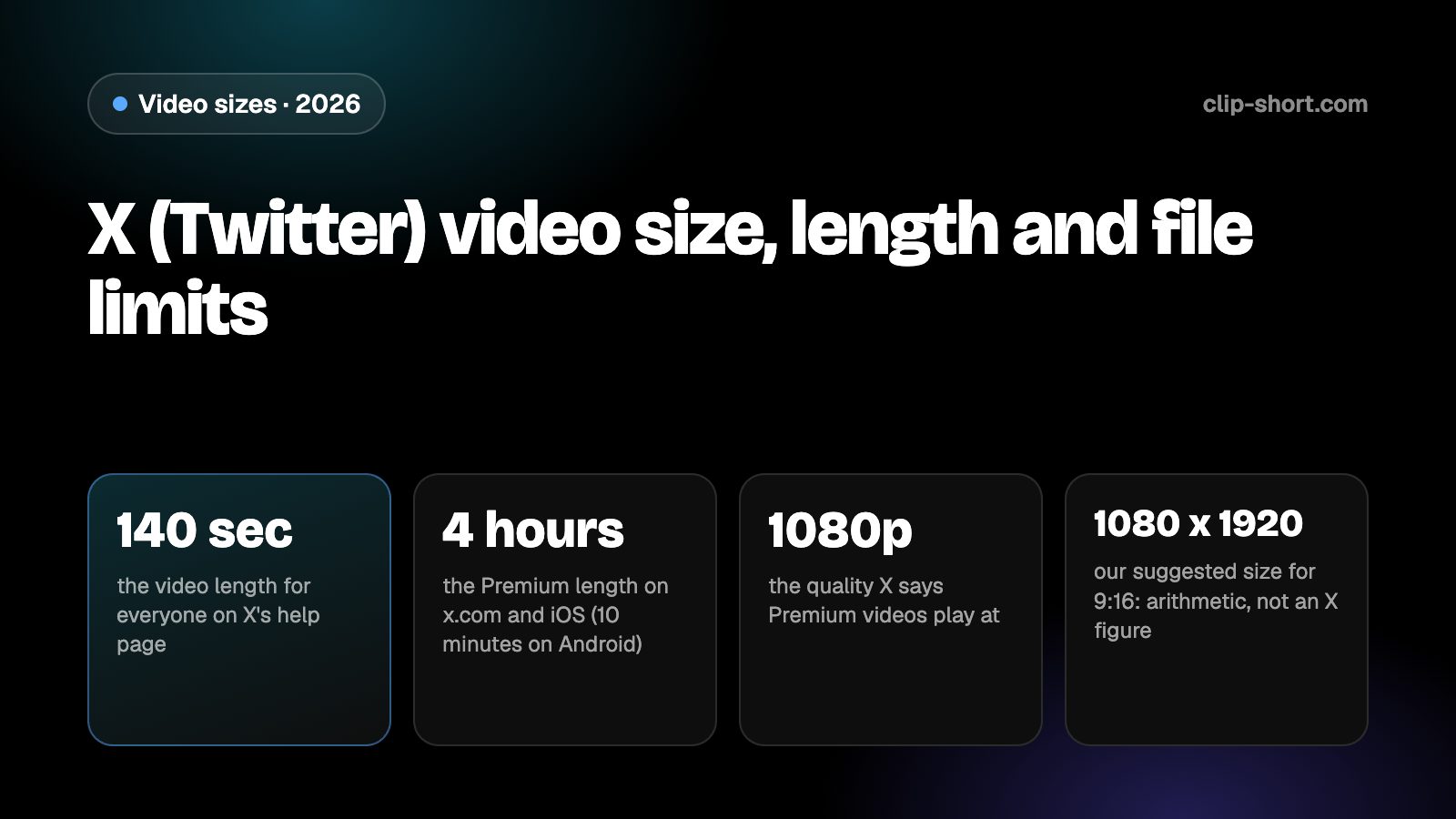
The sizes at a glance
X is the one app in this series that says least about shape. The help pages we read give lengths and say Premium videos play at 1080p, but they name no aspect ratio, no recommended pixel size and no list of accepted ratios. We state none of those, because the pages state none.
What you can say is what works on a phone feed. A vertical video takes more of the screen than a horizontal one, and most people open X on a phone. The table shows the usual shapes at 1080 pixels on the short side; those sizes are our arithmetic, and the notes mark them as ours.
- 140 secthe video length for everyone on X's help page
- 4 hoursthe Premium length on x.com and iOS (10 minutes on Android)
- 1080pthe quality X says Premium videos play at
- 1080 x 1920our suggested size for 9:16: arithmetic, not an X figure
| Shape | Pixels | On X |
|---|---|---|
| 9:16, vertical | 1080 x 1920 | Our suggestion for a phone feed. X names no size |
| 4:5, portrait | 1080 x 1350 | Not named by X on the pages we read |
| 1:1, square | 1080 x 1080 | Not named by X on the pages we read |
| 16:9, horizontal | 1920 x 1080 | Not named by X on the pages we read. Plays smaller on a phone |
If a video already exists in 16:9, you can post it as it is. Cropping to vertical is a choice about how much of the screen it takes, not something X demands.
How long a video can be: where X's pages disagree
X's help page says videos are 140 seconds long for everyone. Longer videos are for Premium subscribers: up to 4 hours at 1080p on x.com and iOS, and 10 minutes on Android. A Premium subscriber can also let others download the video, unless they switch that off while composing.
X's developer documentation, written for apps that upload video through the API, gives other numbers for Post videos: 20 minutes and 8 GB by default, and 125 minutes and 16 GB for Premium or verified accounts. It adds that the limit follows the account that uploads, and that attaching a longer video to a Post fails with an error. It lists 140 seconds and 512 MB for videos sent in direct messages.
- Help page: 140 seconds for everyone, up to 4 hours with Premium.
- Developer documentation, Post videos: 20 minutes and 8 GB, or 125 minutes and 16 GB with Premium.
- Direct messages: 140 seconds and 512 MB, in the developer documentation.
When two pages from the same company disagree, the app is the final test. Upload a video of the length you plan to use before you build a series around it.
Keep words and faces out of the way
X draws its own interface over a video: the player controls, the account name and the buttons under the Post. A caption or a face placed at the very bottom of the frame can sit under the controls once the video plays.
The pages we read give no safe-zone drawing in pixels, so we give no margin numbers. Keep titles, captions and faces toward the middle of the frame, and check the Post on a phone before you publish it. Most people see a video in the timeline with the sound off until they tap it, so captions burned into the picture carry the meaning.
Preparing a video for X
If your footage is horizontal, decide whether to crop it. A 16:9 frame cropped to 9:16 at the same height keeps a little under a third of its width (81 out of 256 parts), so the crop has to follow the speaker or the action. A crop fixed on the middle cuts people off as soon as they move.
A clear, short video that makes its point inside the first seconds suits any feed, and 140 seconds is long enough for most of them. If you are not a Premium subscriber, cut the video to fit instead of hoping it uploads. Then export once, with the captions in the picture, and use the same file everywhere else.
- Export 9:16 at 1080 x 1920 for a phone feed.
- Keep it to 140 seconds if you are not a Premium subscriber.
- Put the captions in the picture before you export.
Sound, captions and the first seconds
A video in the X timeline usually starts muted, so a caption burned into the picture is how the meaning reaches people who scroll past. Add the captions before you export, and keep each line short enough to read at a glance.
The first seconds decide whether a viewer stays. Start with the result, the question or the surprise, and leave out the greeting and the logo. A clear picture of the main point in the first frame also helps, since a still can show before the video plays.
Check the finished file in the app on a phone, with the sound off, before you post. Text that looks large in an editor can be small on a handset, and a face that looks centered can sit under the controls.
- Add captions before you export.
- Open on the point, not on a greeting.
- Watch it once in the app with the sound off.
Making the video once
Clip-Short exports videos in 9:16, 1:1, 4:5 and 16:9, with captions burned into the picture, so one export in the right shape covers X and every other app. The AI Agent makes a narrated, captioned video from an idea, and AI Clipping cuts a long video into vertical clips.
The free plan makes 1 AI video a month, up to 1 minute long. That is enough to try the shape on X before you plan a series.
It does not change what an app accepts. It only saves you from remaking the file for each one, so the numbers in this guide are the ones to follow.
Before you post a video on X
- Within 140 seconds, unless you are a Premium subscriber.
- Exported at 1080 x 1920 for a vertical 9:16 video.
- Captions burned into the picture.
- Tested in the app, because X's pages disagree on limits.