
Two kinds of captions
There are two ways to caption a short video, and they are not the same thing. The first is the platform's own captions: after you upload, TikTok, Instagram or YouTube listens to the speech and writes it out as text. Those captions are kept apart from the picture, the platform draws them over the video, and viewers can usually turn them off.
The second is captions on the picture itself, often called burned-in or open captions. They are part of the video file, so everyone sees them, with the sound on or off, and they look the same on every platform you post to. You choose their font, colour and position, and they can light up each word as it is spoken, a style you see on many short videos.
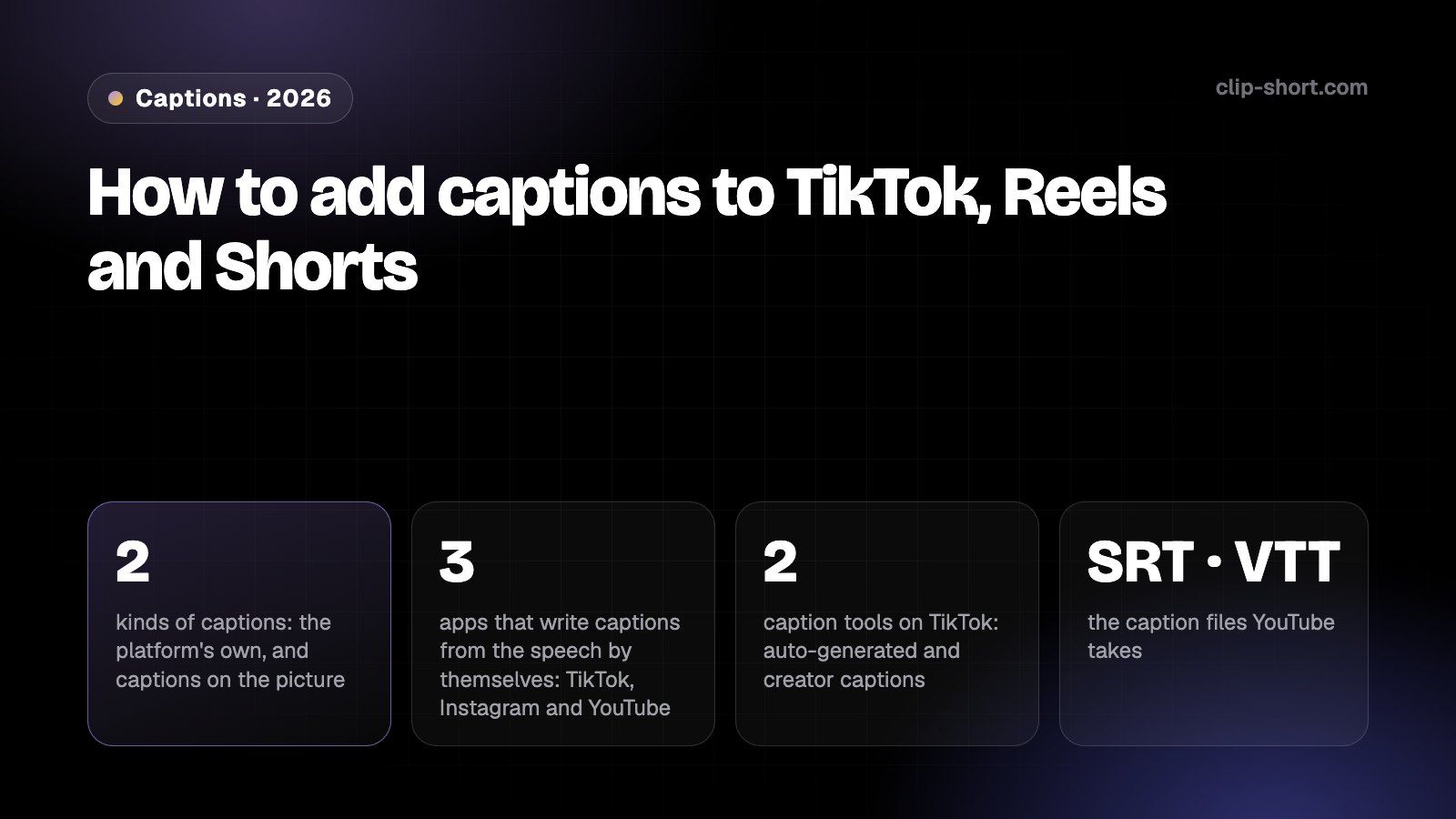
- 2kinds of captions: the platform's own, and captions on the picture
- 3apps that write captions from the speech by themselves: TikTok, Instagram and YouTube
- 2caption tools on TikTok: auto-generated and creator captions
- SRT · VTTthe caption files YouTube takes
On a given video, use one or the other: two sets of the same words on screen get in each other's way. The sections below show how to turn each platform's captions on, how to fix them, and how to switch them off when your video already has captions on the picture.
YouTube and YouTube Shorts
YouTube makes automatic captions for long videos and for Shorts, in many languages, Arabic, Spanish, Portuguese and English among them. They are made by machine learning, and YouTube says plainly that their quality varies: accents, dialects, mispronunciations and background noise can all make them wrong, so it asks creators to review them.
To review or fix them, open YouTube Studio, go to Subtitles, choose the video and edit the lines that were not transcribed properly. They may not be ready the moment you upload: YouTube says the time they take depends on how complex the audio is.
YouTube does not make them at all when the audio is hard to follow: poor sound, a long silence at the start, several people speaking over each other, a language it does not support, or a video that is too long. Then you can add your own caption file instead, as the section on caption files below explains.
TikTok
TikTok has two caption tools. Auto-generated captions are made with speech recognition for the videos you upload. To choose their language, go to the post screen, tap More options, then Select video language, and pick the language spoken in your video. Eligible videos show captions in that language once they are posted.
To fix them after posting, open the video, tap the caption, then Edit captions: you can edit or remove any line, then tap Save. Removing them is also how you stop a video that already has captions on the picture from showing the same words twice.
Creator captions are the second tool. While you make the video, tap Captions on the side panel and TikTok transcribes the speech; you can edit each line and change the font style and colour before you save. The first time, TikTok asks you to turn the feature on.
Instagram Reels
Instagram writes closed captions for reels with speech recognition and shows them at the bottom of the reel. You manage them in the Instagram app on your phone: Instagram's Help Center says the setting is not available on computers.
For a new reel, choose your video, tap Next, then More options at the bottom, and use the Enable closed captions switch. A second switch, Translate closed captions, turns caption translations on or off. For a reel you already posted, open it from your profile, tap Options, then Edit, then More options, and use the same two switches.
Captions on the picture, with Clip-Short
Clip-Short's Auto Caption puts captions on the picture. Upload a video or paste a link, and the AI writes down every word with its timing; the captions are drawn on your video in the style you pick. You watch the captioned preview before anything renders, and you fix any word the AI misheard by clicking it.
Captions are written in the language spoken in the video; they are not translated, and Arabic is captioned right to left. When they look right, the video downloads as an MP4 with the captions in the picture, ready for TikTok, Reels, Shorts or anywhere else, and they look the same on each.
The other tools caption too: a clip that AI Clipping cuts from a long video comes with captions from its own words, and a video the AI Agent makes from your idea has captions under its narration.
Caption files: SRT and VTT
A caption file holds the words and their timings as text, apart from the video. YouTube takes them when you add subtitles in YouTube Studio: SubRip (.srt) is one of its basic formats, and WebVTT (.vtt) is supported with limited styling. YouTube suggests the simple formats to beginners, because they only need timings and open in any text editor.
Auto Caption downloads your video's captions as SRT, VTT or plain text, made from exactly the words the video shows, your corrections included. That helps when YouTube's automatic captions came out wrong or were not made at all, and when you want a written transcript of what was said.
Do you need a caption file?
- Are you posting on YouTube?
- Did YouTube's automatic captions come out wrong, or were they not made at all?
Which to use
Use the platform's captions when you want viewers to be able to turn them off, or when the video already has text of its own. Check them before or right after you post: they are made by a machine and can be wrong on names, slang and dialect.
Use captions on the picture when you want them styled, want them to look the same everywhere you post, and want them there in any app or player. Then switch the platform's own captions off on TikTok and Instagram, so the same words do not appear twice.
Which captions fit your video?
- Do you want the captions styled?
- Do you want them to look the same everywhere you post?
- Do you want them there in any app or player?
Before you post
- On TikTok, you picked the language of your video before posting.
- You read the names, numbers and slang in the captions yourself.
- A video with captions on the picture has the platform's captions switched off.
- For YouTube, you have an SRT or VTT file ready if its automatic captions came out wrong.