
Choose an idea people will want to watch
Every YouTube Short begins with an idea. The important part is making that idea specific enough to explain in a short video. For example, "history" is a broad topic. "Why did ancient Egyptians build pyramids?" gives you a question your video can answer. If you're starting from zero, consider these types of content:
- Stories: Tell an interesting, surprising, or educational story.
- Countdowns: Share useful tips, facts, or recommendations in a numbered format.
- Quizzes: Ask viewers a question and reveal the answer.
Choose something you're interested in and can explain clearly. You don't need to invent a completely new topic, but your video should offer a useful answer, interesting perspective, or entertaining experience.
What beginners get wrong: Trying to cover too much in one video. A beginner might attempt to explain the entire history of space exploration in a single Short. A better approach is to answer one interesting question or tell one focused story.
In Clip-Short: write your idea in one sentence and the AI Agent turns it into a narrated, captioned video. You can pick one of 5 formats: a story, a top 5 countdown, a quiz, a text-chat story or a POV.
Write a simple script
A script is the text that will be spoken in your video. You need clear sentences that sound natural when read aloud. A beginner-friendly Short can follow this structure: Opening: Give viewers a reason to keep watching. Main content: Explain the idea, tell the story, or answer the question. Ending: Deliver the conclusion or invite viewers to respond. Before recording, read your script aloud.
What beginners get wrong: Writing like an essay instead of writing for speech. Long introductions, complicated vocabulary, and unnecessary explanations make short videos harder to follow. Use everyday language, get to the point, and read the script aloud before moving on.
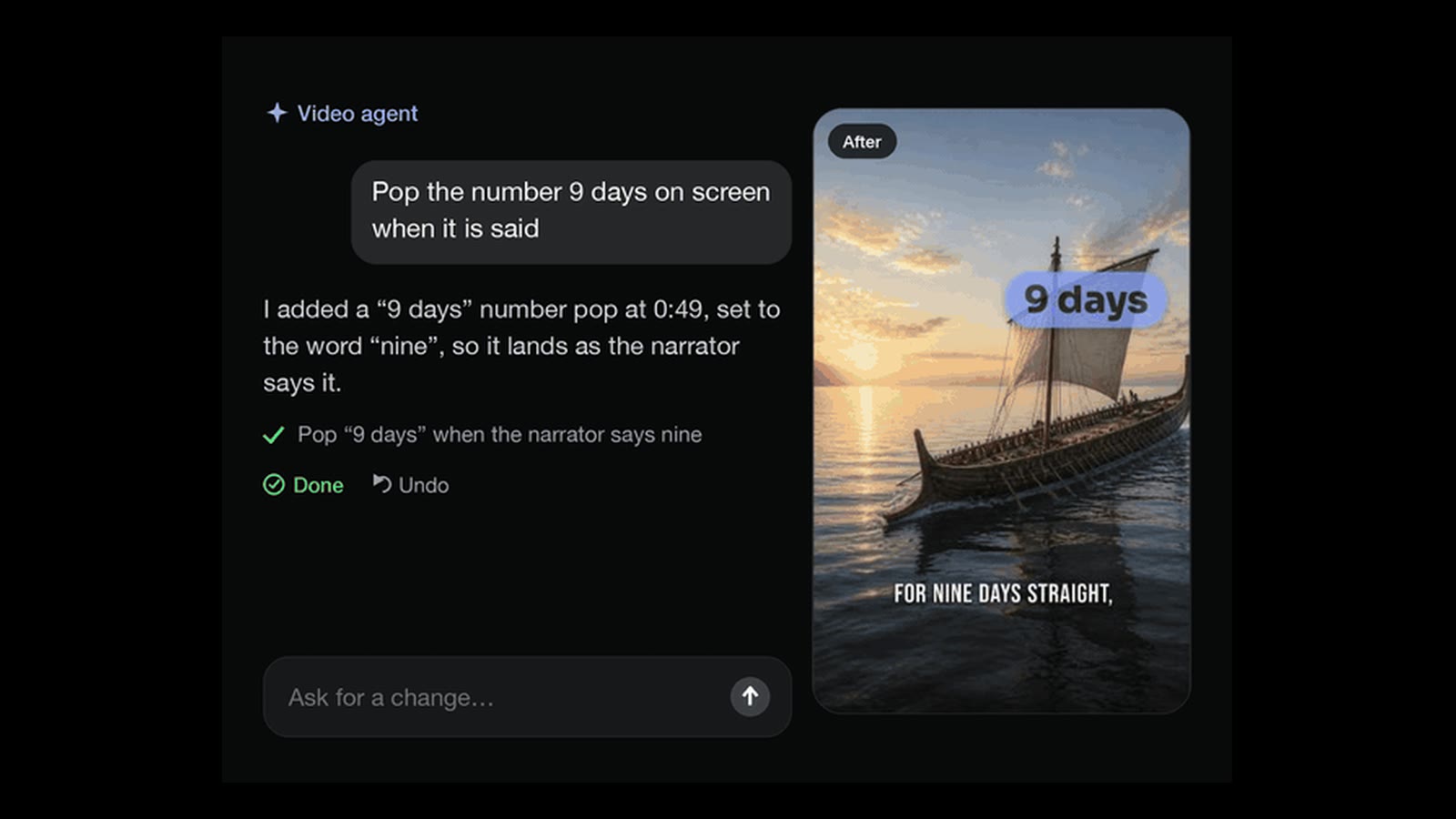
In Clip-Short: the AI Agent writes the script from your idea. Before you export, you can rewrite what the narrator says in any scene.
Add a voice to your video
Once your script is ready, you need to decide how viewers will hear it. You can record yourself speaking with a phone or microphone. Or you can use an AI voice to read your script. AI narration is useful when you don't want to record your own voice, don't have a quiet recording space, or want to produce videos in another language. Listen carefully for names, numbers, unusual words, and sentences that sound unnatural.
What beginners get wrong: Assuming an AI voice will pronounce everything correctly. An AI voice might read a name incorrectly or use an unnatural pause. Always listen to the complete narration before publishing. If something sounds wrong, revise the wording or narration.
In Clip-Short: the AI Agent narrates with one of 23 voices in any of 30 languages, Spanish and Brazilian Portuguese among them, with captions in the same language. A finished video can be made again in another language, over the same pictures and in the same voice.
Create pictures or choose video footage
Now you need something for viewers to see. You don't need a camera or a collection of professional video clips to begin. Depending on the idea, you could use:
- AI-generated pictures that illustrate your script.
- Original videos recorded on your phone.
- Screen recordings showing how to do something.
- Footage you own or have permission to use.
Choose visuals that support what the narrator is saying. If you use AI-generated historical scenes, remember that they're illustrations, not necessarily accurate historical records. Also, don't assume that finding an image or video online means you can reuse it. Check its license or obtain permission where needed.
What beginners get wrong: Using unrelated visuals or leaving mistakes in AI-generated pictures. If the narration describes one thing while the picture shows something different, viewers may become confused. AI images can also contain inaccurate details. Review every scene and replace pictures that don't match your message.
In Clip-Short: the AI Agent makes a picture for each part of the script, or uses stock footage, and you can swap or redraw any picture. If you already have a long video, AI Clipping cuts it into vertical clips with captions, from a YouTube, Twitch, Kick or X link or an upload.
Add captions people can read
Captions display spoken words as text on the video. They're useful because people may watch Shorts without sound, have difficulty hearing the narration, or find it easier to follow unfamiliar words when they can read them. Good captions should be:
- Large enough to understand without zooming.
- Clearly visible against the background.
- Correctly matched to the narration.
- Positioned where YouTube's interface is less likely to cover them.
Avoid displaying too much text at once. Make sure the text doesn't hide the important part of the picture.
What beginners get wrong: Trusting automatic captions without checking them. Automatic captions can contain spelling mistakes, incorrect names, or missing punctuation. Watch the finished video at phone-screen size and correct anything that's difficult to read.
In Clip-Short: the AI Agent's videos come with animated captions you can restyle. For a video you filmed, Auto Caption adds captions you can correct, burned into the video or downloaded as an SRT or VTT file.
Use the right YouTube Shorts size and length
A video is a Short when it is square or vertical and up to 3 minutes long; the usual size is 9:16 at 1080 x 1920 pixels. That figure is arithmetic: YouTube's help pages do not state a pixel size. A horizontal 16:9 video is never a Short, however short it is.
That doesn't mean every Short should be three minutes. Your video should be as long as necessary to deliver its idea clearly, without repeating information just to make it longer. A quick quiz may need less time than a detailed story. Check the platform's own help page before publishing because technical requirements can change.
What beginners get wrong: Creating a horizontal video and uploading it without checking how it appears vertically. Important details might become too small, or cropping might remove part of the picture. Check the shape, review the framing, and remove sections that don't add value.
In Clip-Short: the AI Agent makes 9:16 unless you pick 1:1, 4:5 or 16:9, and you choose the length before it is made (one video paid once is up to 3 minutes). Reframe turns a horizontal 16:9 video into 9:16, following the subject.
Download and post your YouTube Short
Your video is now ready to publish. If you've created it in a video-making tool, download the finished file to your device. Then open YouTube and upload it. Using YouTube Studio on a computer:
- Sign in to your YouTube account.
- Select Create, then Upload videos.
- Choose your finished vertical video.
- Add a clear, relevant title and complete the required video details.
- Review the visibility settings.
- Publish when you're ready.
You can also upload a Short through the YouTube app. You don't need a complicated title. You can also write a short description that provides context and use relevant hashtags when appropriate. Don't promise something in the title that the video doesn't deliver.
What beginners get wrong: Thinking a finished video has already been published. Creating, exporting, scheduling a reminder, and posting are different actions. Another common mistake is uploading without reviewing the title, audio, captions, and privacy settings.
In Clip-Short: the Post button writes the words for YouTube Shorts: a title, a description and search tags. A scheduled post is an email that reminds you to post. Clip-Short never posts for you: you download the video as an MP4 and upload it yourself.
Keep posting and learn what works
Publishing your first video is a beginning, not the end of the process. The way to learn is to make more videos, observe the results, and use what you discover to improve the next one. Start with a topic that allows you to create several related videos. For example, a channel about interesting science facts could include:
- Why do we dream?
- What happens inside a black hole?
- What causes the northern lights?
You can also repeat a useful format. For example, if your audience responds well to quizzes, try making quizzes about different subjects within your chosen topic. There's no universal posting frequency that guarantees growth. As a beginner, choose a schedule you can maintain without rushing the quality of your videos. Open YouTube Studio and look at the analytics for your Shorts.
Suppose you publish several videos about space. One video about black holes gets more views than your others, while another gets fewer views but encourages more people to comment. Don't assume one successful video proves that every similar video will perform the same way.
What beginners get wrong: Giving up after a few videos or focusing only on view counts. A video with fewer views might still teach you something valuable about your topic, opening, or audience. Another mistake is changing the entire channel's direction after one result. Look for patterns, improve one thing at a time, and give yourself opportunities to practice.
In Clip-Short: on Pro, Series drafts videos on one topic on the schedule you set. Nothing is posted until you post it.
What it costs to make YouTube Shorts with Clip-Short
Since October 27, 2026, the free plan makes no AI videos: it gives 60 minutes a month of Auto Caption and Reframe, with a small watermark. AI Clipping comes with Pro or a Clip pack. AI videos are paid: with Pro, or one at a time, paid once (except in Egypt). The account needs no card.
Pro is US$19 a month for 10 AI videos. One AI video on its own is US$2.49, paid once (MX$35 in Mexico, R$11.90 in Brazil; not sold on its own in Egypt), up to 3 minutes, with no watermark.
Filmed it yourself? The free plan's Auto Caption and Reframe caption it and make it vertical.
What Clip-Short does not do
- It never posts for you. You download each video and post it on YouTube Shorts yourself.
- It does not film anything. Its pictures are AI pictures or stock footage, not footage of you, a real place or a real event: for those, film it and use Auto Caption and Reframe.
- It does not check facts for you. The script is a first draft: check every name, number and claim before you post.
Before you post your Short, check that:
- The pictures match what the narrator says.
- The voice is easy to understand.
- The captions are correct.
- The video is vertical and no longer than it needs to be.
- The music does not drown out the voice.