
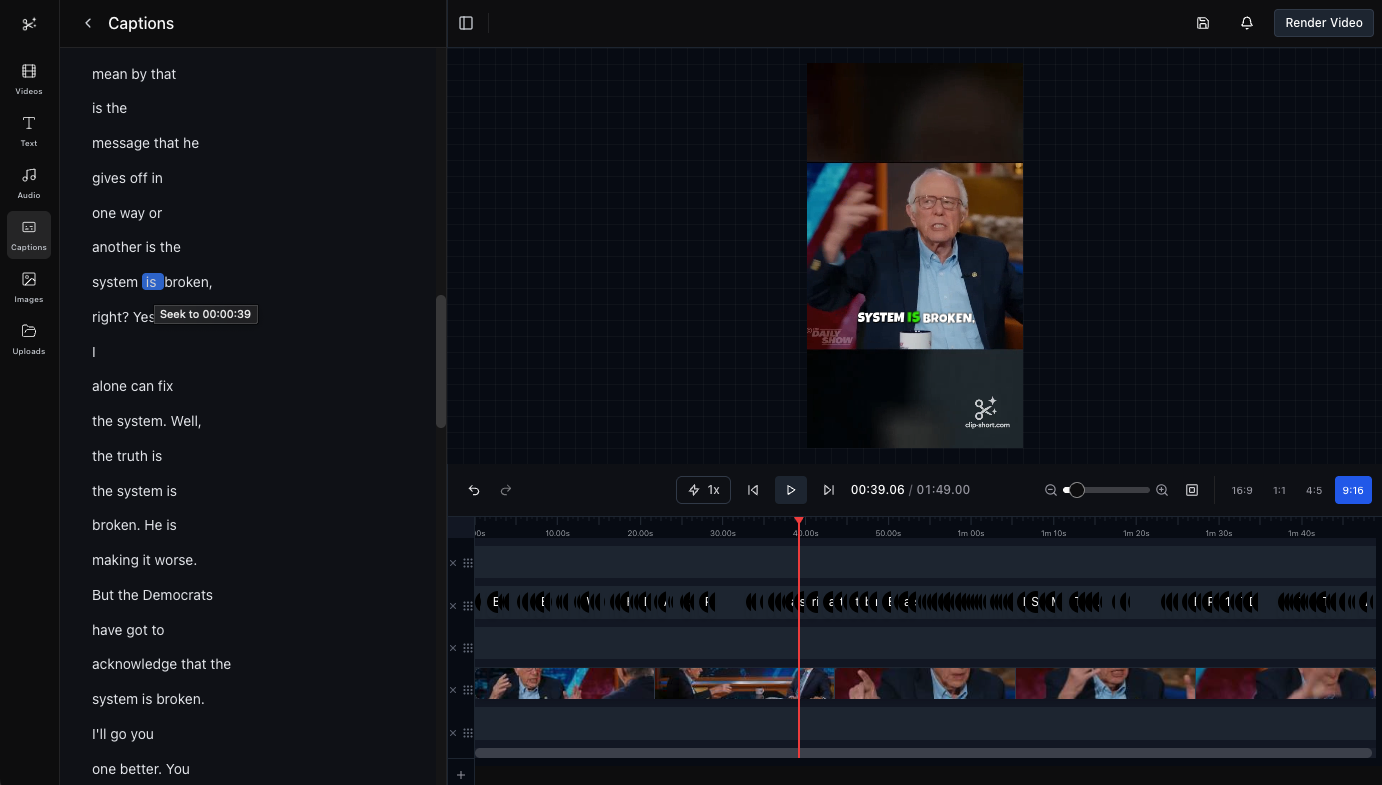
Clip-Short Launches AI-Powered Video Editor: Create Professional Short Videos Without Experience
How the Clip-Short video editor makes short videos simple: timeline editing, auto captions, effects and more, with no editing experience needed.
Gone are the days when video editing required expensive software and years of experience. With AI-powered video editors, anyone can create stunning short videos for social media in minutes - no technical skills required.
What Makes Our Video Editor Different?
Traditional video editors overwhelm beginners with complex interfaces and steep learning curves. Our AI-powered editor takes a different approach:
- AI-Assisted Everything: From clip selection to caption placement, AI handles the technical details
- Intuitive Timeline: Professional timeline editing made simple and visual
- One-Click Effects: Apply professional-grade effects and transitions instantly
- Auto-Generated Captions: AI writes captions timed to the speech, for you to check
- Smart Formatting: Videos automatically adapt to any platform's requirements
Key Features That Make Editing Easy
1. Timeline-Based Editing
Our visual timeline makes editing as simple as drag-and-drop:
- Multi-Track Support: Layer video, audio, text, and effects independently
- Precise Trimming: Cut and trim clips with frame-perfect accuracy
- Visual Feedback: See your changes in real-time with instant preview
- Undo/Redo: Experiment freely knowing you can always revert changes
2. AI-Generated Captions
Captions are essential for social media, where many people watch with the sound off:
- Automatic Transcription: AI transcribes your video's speech, and you fix any word
- Smart Timing: Captions are timed word by word to the speech
- Customizable Styles: Choose from dozens of caption templates or create your own
- Your language: Captions are written in the language that is spoken
- Animated Text: Apply dynamic animations to capture attention
3. Layers & Overlays
Create professional-looking videos with multiple layers:
- Text Overlays: Add titles, subtitles, and call-to-actions
- Image Overlays: Insert logos, watermarks, or graphics
- Video Layers: Picture-in-picture and split-screen effects
- Shape Elements: Arrows, circles, and highlights for emphasis
- Lower Thirds: Professional name tags and info bars
4. Effects & Animations
Transform basic footage into engaging content:
- Transitions: Smooth cuts between clips with professional transitions
- Filters: Cinematic color grading and visual effects
- Keyframe Animations: Create custom movement and transformations
- Speed Controls: Slow-motion and time-lapse effects
- Audio Effects: Ducking, fade-ins, and background music mixing
Getting Started: Your First Edit
Step 1: Import Your Content
Start by uploading your video or using AI-generated clips:
1. Click "New Project" in the editor
2. Upload video files or import from AI-generated clips
3. Add to timeline with drag-and-drop
Step 2: Basic Editing
Trim and arrange your clips:
- Trim: Drag clip edges to adjust start/end points
- Split: Click the scissors icon to cut clips
- Rearrange: Drag clips to reorder them
- Delete: Select and press Delete key to remove
Step 3: Add Captions
Let AI handle the transcription:
1. Select your video clip
2. Click "Generate Captions" button
3. Choose a caption style template
4. Review and edit text if needed
AI transcription typically takes 30-60 seconds per minute of video.
Step 4: Enhance with Effects
Add polish to your video:
- Apply Transitions: Select between clips and choose a transition
- Add Text: Click "Text" to add titles or call-to-actions
- Insert Graphics: Upload logos or graphics as overlays
- Color Grade: Apply filters for consistent visual style
Step 5: Export & Share
When you're happy with your edit:
1. Click "Export"
2. Choose format and quality
3. Select aspect ratio (9:16, 16:9, 1:1)
4. Download and share to social media
Exports are watermark-free on paid plans.
Pro Tips for Better Edits
1. Use the Right Aspect Ratio
Different platforms require different dimensions:
- TikTok/Reels/Shorts: 9:16 (vertical)
- YouTube/Twitter: 16:9 (horizontal)
- Instagram Feed: 1:1 (square) or 4:5 (vertical)
- LinkedIn: 1:1 (square) preferred
Our editor lets you export the same project in multiple formats.
2. Master Caption Positioning
Caption placement affects engagement:
- Vertical Videos: Center captions in the middle third to avoid UI elements
- Horizontal Videos: Bottom third is traditional but center works well
- Multiple Speakers: Use different colors or positions to distinguish voices
- Key Moments: Increase caption size for emphasis
3. Keep Transitions Simple
Less is more with transitions:
- Use cuts (no transition) for most clips
- Add transitions only between scenes or topics
- Avoid overusing "flashy" transitions
- Consistency matters - stick to 1-2 transition styles
4. Layer Audio Strategically
Audio makes or breaks a video:
- Background Music: Keep at 20-30% volume under dialogue
- Sound Effects: Use sparingly for emphasis
- Audio Ducking: Let music fade when someone speaks
- Clean Cuts: Use audio fade-ins/fade-outs to avoid pops
5. Optimize for Watch Time
Hook viewers immediately:
- First 3 Seconds: Most critical - show your best content upfront
- Remove Dead Air: Cut out pauses and filler words
- Vary Visuals: Change scenes every 3-5 seconds
- End with CTA: Direct viewers to comment, like, or follow
Advanced Features
Keyframe Animation
Create custom animations without After Effects:
- Select any element (text, image, video)
- Click "Keyframe" icon
- Move playhead to desired time
- Adjust position, scale, rotation, or opacity
- Editor automatically animates between keyframes
Common use cases:
- Zoom-in effects on text
- Sliding text from off-screen
- Logo reveal animations
- Picture-in-picture movements
Color Grading & Filters
Professional visual consistency:
- Presets: One-click cinematic looks
- Custom Adjustments: Brightness, contrast, saturation, temperature
- LUTs: Import professional color grading presets
- Copy/Paste: Apply same grade to multiple clips
Template System
Save time with reusable templates:
- Caption Templates: Saved text styles and animations
- Project Templates: Reusable video structures
- Intro/Outro Templates: Consistent branding
- Effect Presets: Your favorite effect combinations
Workflow Best Practices
1. Organize Your Assets
Before editing:
- Create folders for video clips, audio, graphics
- Name files descriptively
- Delete unused takes before importing
- Keep source files backed up
2. Edit in Stages
Break editing into phases:
- Assembly Edit: Get all clips on timeline in rough order
- Rough Cut: Trim clips and set basic timing
- Fine Cut: Polish timing, add transitions
- Graphics: Add text, captions, overlays
- Color & Audio: Final polish
- Export: Render final videos
3. Use Keyboard Shortcuts
Speed up your workflow:
- Space: Play/Pause
- K: Play/Pause
- J: Rewind
- L: Fast Forward
- C: Cut/Split Clip
- Del: Delete Selected
- Ctrl+Z: Undo
- Ctrl+S: Save Project
4. Preview on Mobile
Before publishing:
- Export a draft version
- Watch on your phone
- Check caption readability
- Verify audio levels
- Test with sound off
Integrations & Workflow
AI-Generated Clips
Seamless integration with our AI clipping feature:
- Use AI to identify best moments in long videos
- Generated clips automatically open in editor
- Refine timing and add enhancements
- Export finished videos
This workflow combines AI efficiency with creative control.
Stock Media Library
Access thousands of royalty-free assets:
- Music Tracks: Background music for any mood
- Sound Effects: Professional audio elements
- Graphics: Icons, shapes, and design elements
- Stock Footage: B-roll and supplementary video
Export
One click renders an MP4 at the size of the video's shape (1080 on its short side), up to 15 minutes long. Free-plan exports carry a small watermark; paid plans remove it. The export keeps going if you close the tab, and your past exports wait in the Exports panel.
Pricing & Features
Clip-Short starts free: the free plan includes 1 hour of video processing and 1 AI Agent video a month. Pro is US$15 a month (or US$100 a year) for each bundle of 5 hours of processing and 10 AI Agent videos, with no watermark and 3 reprompts per video; add bundles when you need more. Paid plans come with a 14-day refund policy. The pricing page lists everything each plan includes.
Common Use Cases
1. Content Creator Workflow
Turn long videos into multiple shorts:
Long podcast episode → AI finds clips → Editor refines → Export 10+ shorts
Time saved: 5-6 hours per episode
2. Social Media Manager
Repurpose content across platforms:
Webinar recording → Create clips → Edit for each platform → Schedule posts
One source video → 15-20 platform-optimized clips
3. Business Marketing
Create product demos and promos:
Raw footage → Add captions and graphics → Brand colors and logos → Export versions
Professional results without hiring an editor
4. Educator/Course Creator
Make engaging lesson clips:
Lecture recording → Highlight key concepts → Add visual aids → Share to students
Increase engagement and retention
Comparison: Traditional vs AI-Powered Editor
| Feature | Traditional Editor | Clip-Short AI Editor |
|---|---|---|
| Learning Curve | Weeks to months | Minutes |
| Caption Generation | Manual or paid plugin | Automatic, included |
| Platform Optimization | Manual export settings | One-click presets |
| System Requirements | High-end computer | Any device, cloud-based |
| AI Features | None or expensive add-ons | Built-in, included |
Troubleshooting Common Issues
Issue: Captions Not Syncing
Solution:
- Check audio quality - AI needs clear speech
- Use "Adjust Timing" to manually shift captions
- Re-generate captions with higher accuracy setting
- Manually edit caption timing if needed
Issue: Slow Playback/Preview
Solution:
- Lower preview quality to "Draft"
- Close other browser tabs
- Clear browser cache
- For very long timelines, render preview
Issue: Export Takes Too Long
Solution:
- Longer videos take longer: cut what you do not need first
- Close the tab if you like: the export keeps going and waits in the Exports panel
Issue: Audio and Video Out of Sync
Solution:
- Ensure source video doesn't have sync issues
- Use "Lock Audio to Video" option
- Re-import video if issue persists
- Check frame rate consistency
Conclusion
Video editing no longer requires years of experience or expensive software. With AI-powered tools like our video editor, anyone can create professional short videos that engage audiences and drive results.
The key is starting simple and gradually exploring more advanced features as you get comfortable. Remember:
- AI handles the technical complexity - you focus on creativity
- Timeline editing is intuitive - just drag and drop
- Captions are automatic - no manual transcription needed
- Effects are one-click - professional polish in seconds
- Export is optimized - videos ready for any platform
Whether you're a content creator, marketer, educator, or business owner, our AI-powered editor helps you create better videos in less time.
Ready to start creating? Try the editor now - it's free to get started, and you'll have your first video edited in minutes.
Frequently Asked Questions
Q: Do I need video editing experience? A: No. Captions come from the speech, cutting words from the transcript cuts the video with them, and one click removes filler words and pauses.
Q: Can I edit videos on mobile? A: Yes, in the browser. On a phone the editor opens in a simpler layout: the video, its transcript, captions, text and your exports, without the timeline.
Q: How long does it take to edit a video? A: It depends on the edit. Automatic captions and transcript cutting take care of the slowest parts.
Q: Can I import my own fonts and graphics? A: You can upload your own images, logos and videos, save a brand kit (logo, corner, size and a caption style), and use the stock footage and image search in the editor.
Q: Are my projects saved automatically? A: Yes. Projects save automatically to your account as you edit, so you can pick up where you left off on another device.
Q: What video formats can I import? A: MP4, MOV, WebM and most other video files.
Q: Can I collaborate with team members? A: Not yet: each project belongs to one account.
Q: Do exported videos have watermarks? A: Free-plan exports carry a small watermark; paid plans remove it.
Q: How is this different from CapCut or Adobe? A: It is built around short social videos: it opens your AI clips and AI Agent videos with their captions and crop already in place, edits by transcript, and renders in the cloud.
Q: Can I cancel anytime? A: Yes. You keep your plan until the end of the period you paid for.
Ready to try it? Open the editor.
Try it on your own video
Start on the free plan, and upgrade only when you need more.